
We’re happy to announce that US donors can now make tax-deductible donations to Eco-Libre!
Eco-Libre has partnered with the Raft Foundation, a 501(c)(3) non-profit in NYC, to receive charitable contribution donations from US donors.
About Eco-Libre
Eco-Libre is a volunteer-run project that designs libre technology for sustainable communities.
Eco-Libre’s mission is to research, develop, document, teach, build, and distribute open-source technology that sustainably enfranchises communities’ human rights.
– Eco-Libre’s mission statement
We aim to provide clear documentation to build low-cost machines, tools, and infrastructure for people all over the world who wish to live in sustainable communities with others.
About Raft
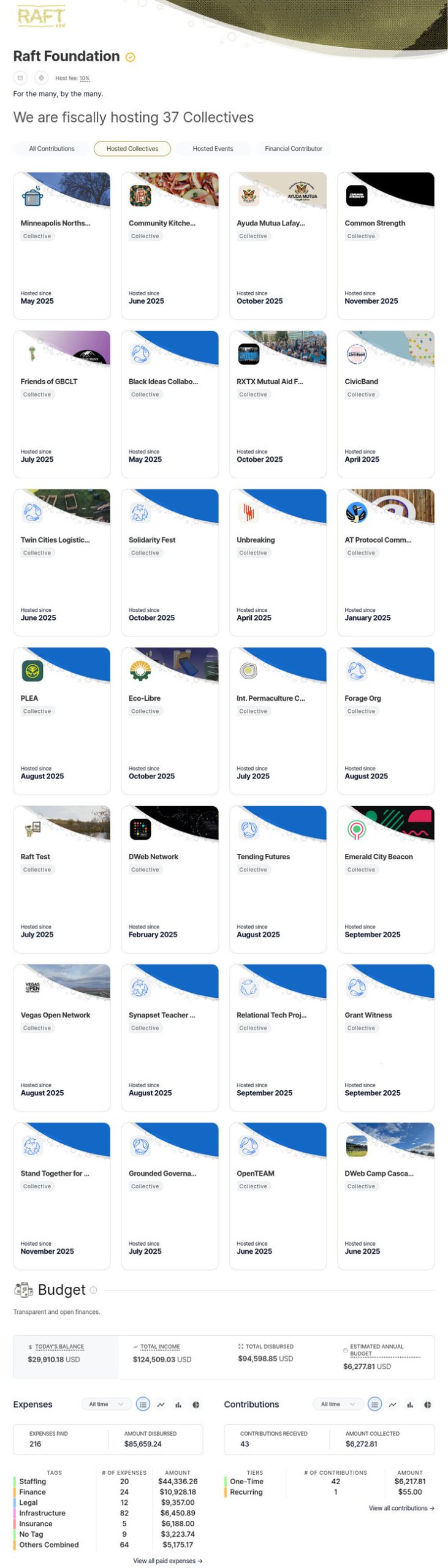
The Raft Foundation is a US-based 501(c)(3) fiscal sponsor that brings communities together to support neighbors in need through:
- collective care,
- community technology,
- movement infrastructure, and
- societal transformation
As a fiscal sponsor, Raft provides administrative services to numerous projects (like us!). This, among other benefits, allows the projects that they sponsor to accept tax-deductible donations, if they align with Raft’s founding principles:
- Resilience: ‘we will endure together and emerge stronger’
- Autonomy: ‘each by our own choice’
- Fullness: ‘toward dreams of abundance’
- Transparency: ‘with nothing to hide’
We look forward to our partnership with Raft to build libre technology for communities that transform society, making them more resilient, autonomous, and sustainable.
Donate
You can make tax-deductible donations to Eco-Libre in your local fiat or preferred crypto-currency.
eco-libre.org/donate
You can also make tax-deductible cryptocurrency donations directly on raft’s website.
Join Us
If you’d like to help Eco-Libre reach our mission to enfranchise sustainable communities’ human rights with libre technology, please contact us to get involved 🙂
Please enter your email address below for updates from the Eco-Libre Team.

![[Vegan Communities Map of Ecuador]](http://www.eco-libre.org/wp-content/uploads/sites/12/2024/09/vegan-communities-ecuador_featuredImage.jpg)
.jpg)